🚀 Welcome to MDriven Learn –  MDriven is now on Discord!  Don’t miss the latest Release Notes.
Customizing login and other account UI MVC
This page was created by Hans.karlsen on 2022-03-08. Last edited by Wikiadmin on 2026-07-29.

You can replace the Turnkey account pages with your own ViewModel pages when you need to control login, registration, or account-management UI in an application using MDriven.ASPNETIdentity.

Choose an override approach

Use the ViewModel-based override for new work. It lets you design the account experience as normal MDriven pages and extend it with your own data, actions, layout, and styling.

Approach Use it when How it is selected
ViewModel override (recommended) You want to control the login, registration, or account-management experience from MDriven Designer. Create ViewModels with the required reserved names: AccountLogin, AccountRegister, and/or AccountManage.
MVC view-folder override (legacy) You need to replace the account controller's Razor (.cshtml) views while retaining the MVC account UI approach. Set AccountController.AccountOverride and place replacement views in the matching override folder.

Override account pages with ViewModels

When Turnkey finds a ViewModel with one of the reserved names below, it uses that ViewModel first for the corresponding account page. The pages are normal ViewModel pages; the name is what gives each one its account-page role.

ViewModel name Replaces Typical use
AccountLogin The login page Present a branded login page, collect credentials, or direct users to an external identity provider.
AccountRegister The registration page Change the registration layout or collect extra information before the user is registered.
AccountManage The account-management page Show information and actions for the signed-in user.

Add the supplied starting pattern

The account override pattern is available as the AccountViewOverride merge model.

  1. Open the application in Live Edit.
  2. Open the AssetsTK sync tab.
  3. Find the MDriven merge example and merge AccountViewOverride into your model.
  4. Review the added AccountLogin, AccountRegister, and AccountManage ViewModels.
  5. Change the layout, styling, fields, and actions to match your application.
  6. Run the application and verify registration, login, logout, and account management.

You may implement only the pages you need. For example, create AccountLogin to replace the login UI while leaving the standard registration and account-management pages in place.

Design a registration page

AccountRegister is a normal ViewModel page. You can add fields and presentation elements to it, such as a centered registration form or introductory text. Before registration completes, the visitor is not yet a known user. Treat information collected at that stage accordingly; it may only be available in the current session until registration identifies the user.

Example: add a field that asks why the visitor is registering, then use the registration flow supplied by the merge pattern to continue to the account controller.

Perform password login from AccountLogin

The merge pattern passes the credentials from the ViewModel page to the account controller through transient values on SysSingleton:

  • TransientLoginRequestUserName
  • TransientLoginRequestPassword

Navigate to the account login endpoint after setting these values:

Account/TryLoginWithPassword

This separation is important: your AccountLogin ViewModel owns the page and collects the input, while the account controller performs the actual password login. Start with the actions in the merged pattern and modify them only when you understand the required login flow.

Build AccountManage for the current user

Use the singleton that represents the currently logged-in user when AccountManage reads or updates account data. Do not root the page by an identity supplied in a URL or other client-controlled value.

For example, an account-management page can display the signed-in user's own details through the current-user singleton. This prevents a user from changing an identifier to reach another user's account when an access rule is missing or incorrectly configured.

Support deep links that require authentication

A deep link is a URL that opens a specific ViewModel. When a user opens a ViewModel that requires authentication, Turnkey can send the user to the login page with a returnUrl, then return the user to the original ViewModel after successful authentication.

To take control of this experience:

  1. Configure the target ViewModel's access group to return false for users who are not authorized.
  2. Implement AccountLogin.
  3. Add a string variable named redirectUrl to receive the return URL.
  4. Preserve that URL while you continue the authentication flow.

For example, an AccountLogin page can use a PeriodicAction to start OpenID Connect authentication and retain the destination:

selfVM.NavigateUrl( 'Account/TryExternalLogin?provider=OpenIdConnect&returnUrl='+SysSingleton.oclSingleton.UrlEncode(returnUrl,false),false )

Use UrlEncode as shown so that the return URL works correctly when URLs are stacked. After OpenID Connect completes, the return URL takes the user back to the ViewModel they originally requested. For the complete access and deep-link behavior, see Documentation:Deeplink with authentication.

Authentication providers

The authentication types available to your application depend on the services you have configured. The default types are:

  • Facebook
  • Google
  • Microsoft
  • Twitter
  • OpenIdConnect
  • OAuth
  • ActiveDirectory
  • Jwt
  • Cookies

See Documentation:External login services in MDriven Turnkey for external login configuration.

Coordinate login-page overrides with Turnkey settings

If you provide a custom account page, review the Turnkey settings that affect which standard login controls remain visible:

These settings also cover related single-sign-on behavior, including whether a user can edit an email obtained from an external login, whether the external-account confirmation screen is skipped, and the OpenID Connect scope.

Legacy: override MVC account views by folder

The legacy mechanism replaces Razor views rather than account pages implemented as ViewModels. It applies to MDriven Turnkey and other applications that use MDriven.ASPNETIdentity.

The account controller implementations differ between .NET Framework and Core-based applications, and their views differ slightly. Use override views that match the controller and runtime used by your application. Core views and Framework views are not expected to work well interchangeably.

How view lookup works

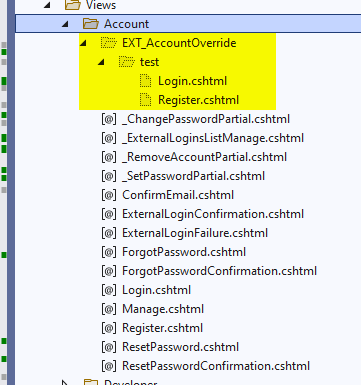
The account controller has a string property named AccountOverride. When it has a value, the controller first looks for every account .cshtml view in:

Views/Account/EXT_AccountOverride/<AccountOverride-value>

If a view is not present there, the controller falls back to the standard location:

Views/Account

The standard location is also used when AccountOverride is empty or null.

Example: set AccountController.AccountOverride to test. A replacement Login or Register view in the test folder is used, while any account view not included in that folder continues to use its standard view.

Set the override value in Turnkey

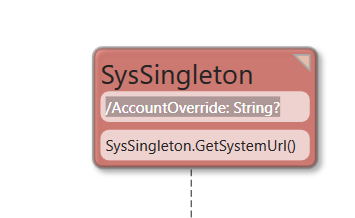
In MDriven Turnkey, implement a string attribute named AccountOverride on SysSingleton. Give it a value that matches an override-folder name.

This allows different account UI variants, such as test, consumer, or admin. Decide the value through your application logic so that the appropriate account view set is selected for the user interaction.

Deploy overridden views

Use the AssetsTK strategy to distribute the override UI to the server. Verify each overridden account action after deployment. An override folder can contain only the views you replace; missing views use the standard account-view fallback.

Related UI guidance

For general web styling and UI customization, see Documentation:UI&Styling. The account controller uses MVC pages, while Turnkey uses AngularJS for most other pages; see Documentation:MVC for the MVC model and behavior. If your requirement is programmatic or token-based sign-in rather than a custom account page, see Documentation:Log in with code.

See also