
Folder Move 20230125[edit source]
We have changed folders for local servers and settings in general to avoid OneDrive syncing. This may result in your LocalServers being lost. The best option is to download it again. To save the MDrivenServer state and settings, copy the old local DB to the new spot.
Example:[edit source]
Old: C:\Users\<USER>\OneDrive\Dokument\MDrivenServers\Server1\MDrServer\App_Data\DatabaseVistaDB.vdb6 or DatabaseCompact.sdf
New:C:\Users\<USER>\AppData\Local\MDrivenServers\Server1\MDrServer\App_Data
Problems Downloading?[edit source]
It is unclear why, but the in-app download sometimes fails on some networks.
- Copy the URL to the Server and Turnkey and download manually via Edge or Chrome here. You want both MDriven-Turnkey-Core and MDrivenServer-Core
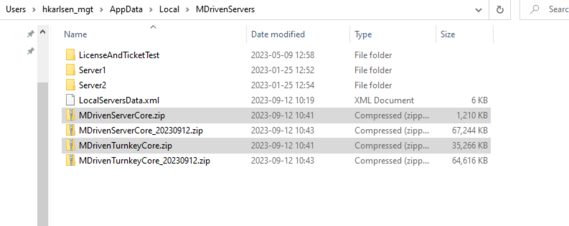
- Copy files to C:\Users\<username>\Documents\MDrivenServers\
- Rename the files by removing the date to MDrivenServerCore.zip and MDrivenTurnkeyCore.zip
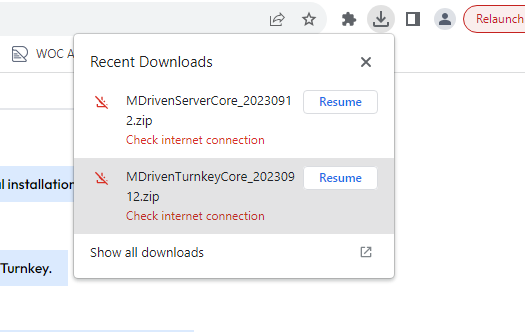
- When cisco umbrella is involved, it may intervene and halt download - but download can be resumed in the browser:


Overview[edit source]
LocalServers is a concept where you run the MDrivenServerCore and MDrivenTurnkeyServerCore editions locally.
MDrivenServer is the backend server responsible for OR-Mapping, Maintaining SQL evolve, Server-side jobs, etc.
MDrivenTurnkey is the Front-end server responsible for UI and Rest services.
LocalServers functionality[edit source]
- Ensures the download of the latest versions of the .netCore3.1 self-contained versions of the 2 server components. The result ends up on the local disk here:\My Documents\MDrivenServers\ with files named MDrivenServerCore.zip and MDrivenTurnkeyCore.zip
- You can now create a complete local server environment locally by adding a new Local-Server-Pair. This local install is given a name and ends up here: My Documents\MDrivenServers\<TheNameOfTheInstall> . under this folder you will find MDrServer and MDrTurnkey
- Inside each My Documents\MDrivenServers\<TheNameOfTheInstall> \MDrServer folder, you will find the full self-contained .net core3.1 executable of the web server for MDrivenServer.
- You can start the AppCompleteGenericCore.exe and it will start to function on the port given in the UI.
- For MDrivenServer, the data is stored in a CompactDB that is found here: MDrServer\App_Data\DatabaseCompact.sdf
- The default database has a user with the name "a" and password "123456" - we suggest you leave that as is for local development.
- Inside each My Documents\MDrivenServers\<TheNameOfTheInstall> \MDrTurnkey folder, you will find the full self-contained .net core3.1 executable of the web server for MDrivenTurnkey.
- The Turnkey server needs to locate an MDrivenServer to find the model and data - the configuration is found in MDrTurnkey\App_Data\MDrivenServerOverride.xml and looks like this:
<?xml version="1.0" encoding="utf-8"?>
<root>
  <MDrivenServerOverride MDrivenServerPWD="123456">http://localhost:5000</MDrivenServerOverride>
</root>
The LocalServers-UI in MDrivenDesigner handles this configuration for you.
How does this LocalServer-logic differ from LocalTurnkeyPrototyper?[edit source]
The LocalTurnkeyPrototyper starts up the TurnkeyCore install (same as discussed above) with this kind of configuration:
<?xml version="1.0" encoding="utf-8"?>
<root>
  <MDrivenServerOverride PrototypeWithMDrivenDesignerInPath="C:\<PathToModlrFile>.Modlr" CopyAssetsTKOnStart="True"/>
</root>
This configuration makes the TurnkeyServer act alone without an MDrivenServer - using XML persistence and the model is taken from the provided modlr or ecomdl file. This is a quick way to see how UI will turn up in HTML - the roundtrip does not require model upload and database evolve - but it does not support Server-side actions and true database behavior.
Issues with SSL cert for localhost?[edit source]
LocalhostDevCert For builds after 2021-04-05, you do not strictly need to use SSL as described in the section below.
Running with HTTP or HTTPS[edit source]
HTTPS uses secure socket layers to protect traffic between 2 parties. This is very important to ensure safety on the internet. But HTTPS requires certificates and trust that is not easily set up without admin rights. By running everything locally, you do not need the protection SSL brings - so we can skip SSL to make your development environment less complex.
This is why today (2021-04-05), we introduce a setting on both the Turnkey and MDrivenServer .net core versions: nohttps. This setting is given on the command line like this:

These are valid command line starts (examples):
AppCompleteGenericCore.exe -host=10.186.18.39 -port=5019 -nohttps
AppCompleteGenericCore.exe -host=jumpdev_hk.yourdomain.com -port=5019 -nohttps
You may need to add Windows Firewall incoming rule for the ports you use in order to access the servers from outside your machine
See also: Injecting the Core server command line parameters via file